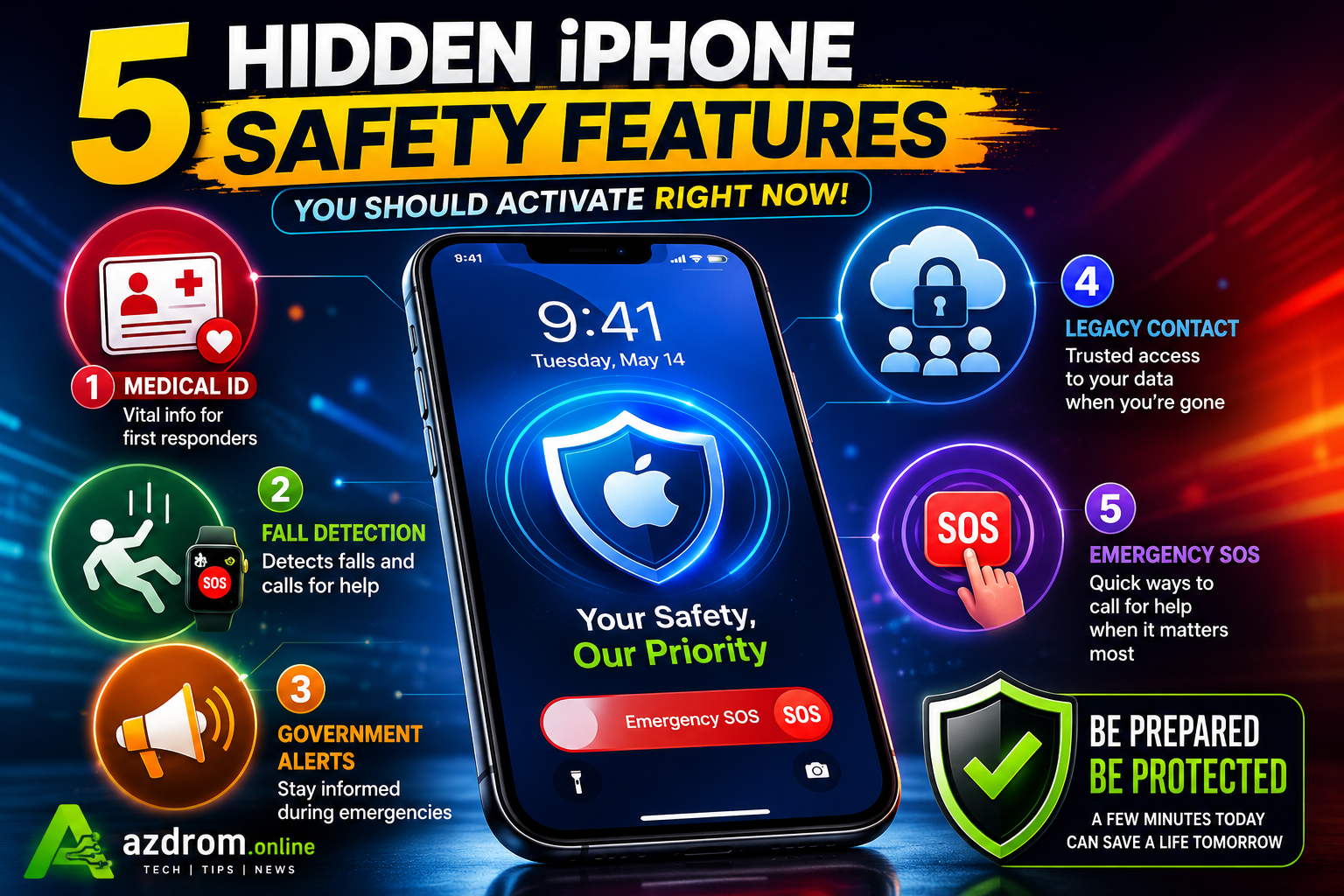
Beyond being a hub for communication and entertainment, your iPhone is equipped with a comprehensive ecosystem of life-saving safety features. While some tools—like Satellite SOS on newer models or Automatic Crash Detection—are enabled by default, many of the most critical emergency features require manual configuration.
Taking just a few minutes to configure these hidden tools can make a massive difference in an unexpected crisis. Here are five essential iPhone safety features you should check and activate right now.
1. Set Up Your Medical ID for First Responders
One of the most valuable yet frequently overlooked safety features on the iPhone is the Medical ID. This tool acts as a digital health identity card, securely storing vital data such as chronic medical conditions, known allergies, blood type, current medications, and primary emergency contacts.
In a critical medical situation, this information can be displayed directly on your iPhone’s lock screen without needing to unlock the device. This allows healthcare professionals and emergency responders to quickly access your medical history when every second counts.
- How to Enable It: Open the Health app, tap the Summary tab, and select your profile picture in the upper right corner. Tap Medical ID, fill out your medical details, and ensure that the Show When Locked toggle is turned on.
2. Enable Fall Detection via Apple Watch
When paired with a compatible Apple Watch (Series 4 or later), your iPhone transforms into an effective safety monitor, particularly for the elderly or individuals at a higher risk of physical injuries.
The Fall Detection system is designed to identify hard, sudden impacts. Once a fall is detected, the Apple Watch triggers a vibrating alert and prompts you to respond. If the device detects no movement or response for a full minute, it automatically dials local emergency services and broadcasts your exact real-time coordinates to your pre-configured emergency contacts.
- How to Enable It: Open the Watch app on your iPhone, select the My Watch tab, go to Emergency SOS, and turn on the Fall Detection toggle.
3. Turn On Government Emergency Alerts
Staying informed during sudden natural disasters, extreme weather anomalies, or local security crises is vital for minimizing personal risk. Your iPhone can receive real-time, official emergency broadcasts directly from local authorities without requiring you to check news outlets or social media channels.
Depending on your country or region, you can also toggle advanced localized alerts, such as early-stage earthquake warnings or imminent public safety threats.
- How to Enable It: Go to Settings, select Notifications, scroll completely to the bottom of the screen, and activate the toggles under the Government Alerts section. (Note: This feature requires an active SIM or eSIM and available options may vary by region.)
4. Establish a Legacy Contact for Account Security
Introduced to bolster digital asset protection, Apple’s Legacy Contact feature allows you to choose trusted relatives or friends who can safely access your personal data in the unfortunate event of your passing.
A designated Legacy Contact can request access to your stored photos, notes, text messages, files, and iCloud device backups. However, to preserve maximum privacy, highly sensitive security infrastructure like saved passwords, keychain data, and payment credentials remain completely locked out.
- How to Enable It: Open Settings, tap your Apple ID account name at the top, select Sign-in & Security, and navigate to Legacy Contact. Once configured, Apple will generate a unique, secure access token that you can share with your chosen contact.
5. Customize the Quick-Trigger Emergency SOS
The Emergency SOS feature is your direct line to local authorities, but configuring its trigger habits can make it significantly easier to use during high-stress situations. Apple provides two distinct rapid-activation options:
- Press and Hold to Call: This method allows you to initiate an emergency call by pressing and holding the side power button along with either of the volume buttons simultaneously.
- Press 5 Times to Call: This method initiates a countdown and dials emergency services when you rapidly click the side power button five consecutive times.
Enabling both triggers simultaneously gives you flexible, quick-access options to summon help silently or in environments where your physical movement is restricted.
- How to Enable It: Navigate to Settings and open the Emergency SOS menu to customize and activate your preferred calling behaviors.